MATLAB Installation Guide
1. Open the MathWorks website
Go to MathWorks.

2. Sign in
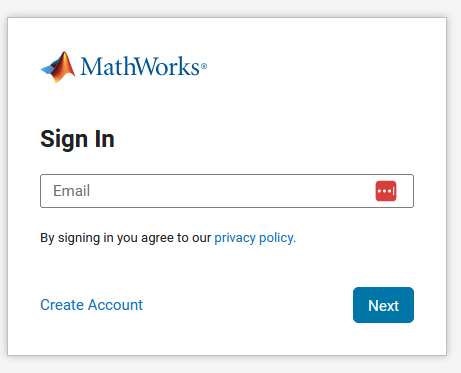
Click the “Sign In” icon in the top right corner and select the login option. Enter your login details (email address and password), then click “Sign In”. If you do not yet have an account, select “Create Account”.
3. Go to the downloads section
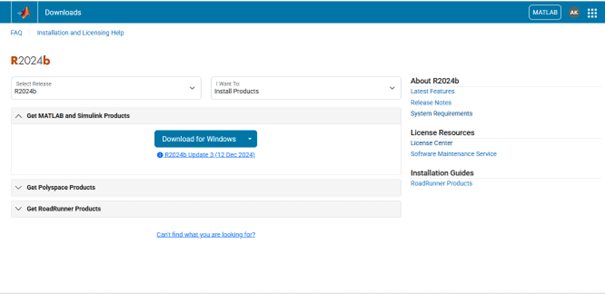
After logging in, on the main page find and click the “MATLAB” button and then “Install MATLAB” on the following page.

4. Select the MATLAB version
Choose the appropriate MATLAB version for your operating system (Windows, MacOS, Linux). Click “Download” next to the selected version.
5. Download the installer
After clicking “Download”, the installation file will be downloaded to your computer. Locate the downloaded file (usually in the “Downloads” folder).
6. Run the installer
Double-click the downloaded installation file to run it. If a dialog box appears asking for permission to make changes to your computer, click “Yes” or “Allow”.
7. Sign in to the installer
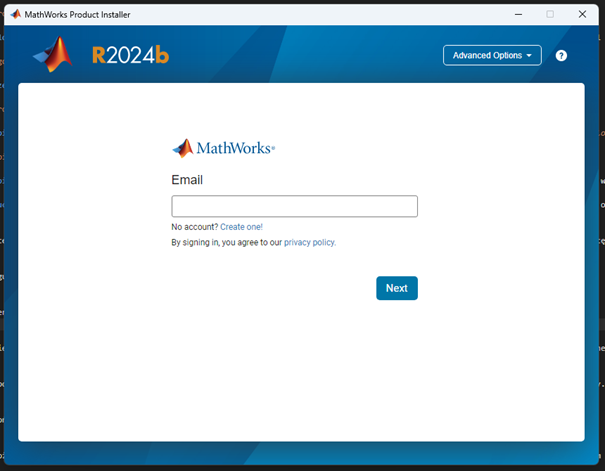
Enter your MathWorks account login details in the installer window and confirm your choices on subsequent windows by clicking “Next”.
8. Select the destination folder
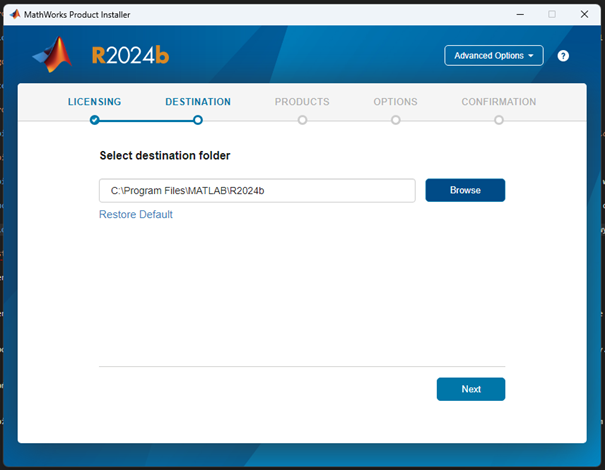
Specify the folder in which you want to install MATLAB, or leave the default location. Click “Next”.
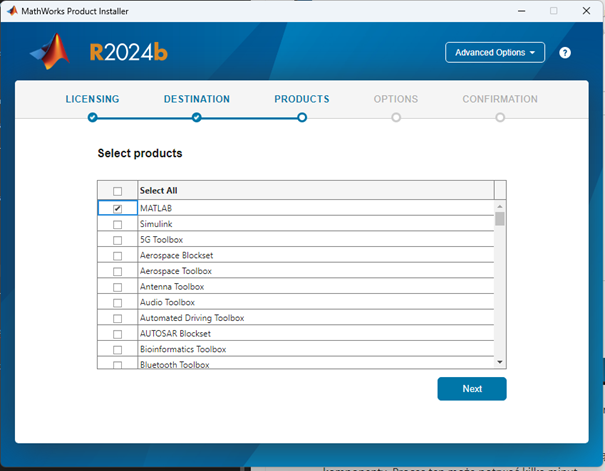
9. Select components to install
Choose the programs and tools you wish to install. You can select or deselect individual components. Click “Next”.
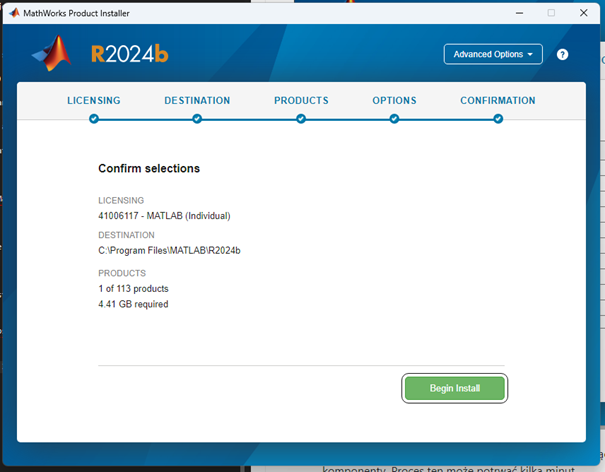
10. Start the installation
Click “Begin Install” to start the installation process. The installer will download and install the selected components. This process may take several minutes.
11. Finish the installation
After the installation is complete, click “Finish” or “Close” to exit the installer. You can now launch MATLAB by clicking the icon on the desktop or in the Start menu.
Reports concerning licensing should be submitted via the helpdesk form. This will enable a faster response and redirection of the report to the appropriate support staff.